Fix White Camera Output in Google Meet on Linux Wayland
Overview
This guide presents a solution that resolved the issue on my system. However, white camera output in Google Meet on Wayland can stem from various causes, so other users may find different workarounds effective.
After switching from X11 to Wayland, I encountered a white camera feed in Google Meet on Chrome-based browsers. This guide shows how to resolve it. The fix has been tested on Brave Nightly and works across all Chromium-based browsers.
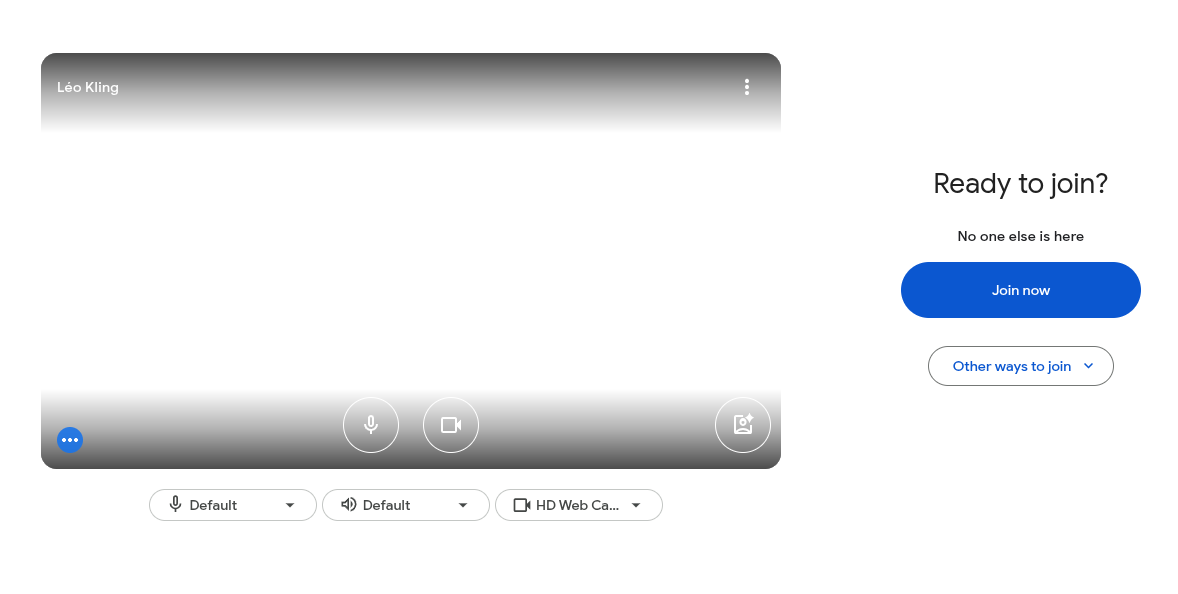
Per my understanding, the issue is related to NVIDIA under Wayland and not a bug in Chrome itself.
Solution Overview
This guide shows how to wrap your browser with a custom .desktop file that includes the necessary flag to fix the camera issue. By creating a wrapper, you preserve the configuration across browser updates. This method works with any Chrome-based browser, regardless of installation method (apt, snap, flatpak, etc.).
Verify Your Display Server
Check that you’re running Wayland:
echo $XDG_SESSION_TYPE
If the output is wayland, this guide applies to you.
Locate Your Browser
For this example, we’ll use Chromium:
which chromium-browser
Output:
/usr/bin/chromium-browser
Create a Custom Desktop File
Create a new .desktop file:
touch ~/.local/share/applications/chromium-wayland.desktop
Edit the file with the following content:
[Desktop Entry]
Name=Chromium (Wayland)
Exec=/usr/bin/chromium-browser --disable-gpu-compositing %U
Terminal=false
Type=Application
Icon=chromium-browser
Categories=Network;WebBrowser;
StartupWMClass=Chromium-browser
The --disable-gpu-compositing flag fixes the white camera issue.
You can change the Exec line by whatever method you want.
The StartupWMClass should match your browser’s window class name.
The browser will now appear as “Chromium (Wayland)” in your application menu.

Flatpak
If you installed your browser via Flatpak, flags should be passed by editing a flags configuration file:
cd ~/.var/app/com.chromium.Chromium/config
nano chromium-flags.conf
Note that the path may differ based on your browser. For example, for Brave, it would be:
cd ~/.var/app/com.brave.Browser/config
nano brave-flags.conf
Then add the following line:
--disable-gpu-compositing
Testing
Your camera should now display correctly:

Terminal Usage
If launching from the terminal, add the same flag:
chromium-browser --disable-gpu-compositing
This silences GPU-related errors like:
[32732:32732:0218/174012.509711:ERROR:gpu/command_buffer/service/shared_image/shared_image_manager.cc:259]
SharedImageManager::ProduceSkia:
Trying to produce a Skia representation from an incompatible backing: OzoneImageBacking